How to Design an Omnia Intranet Homepage Users Actually Use
Stop Building Digital Landfills
Most intranets fail quietly. They launch with fanfare, promise a transformed workplace, and then become cluttered archives where productivity goes to die. Teams revert to email chains and scattered SharePoint folders because the homepage—the gateway to everything—buries essential tasks beneath layers of news feeds, corporate announcements, and content no one asked to see. The result is a digital landfill: expensive, underutilized, and actively hindering the work it was meant to support.
The solution is not another redesign. It requires a fundamental shift from a ‘News-First’ mindset to a ‘Task-First’ philosophy. Users do not visit the intranet to read the CEO’s latest message. They arrive with intent: to book annual leave, find a policy document, submit an expense claim, or access the tools they need to complete their work. When the homepage prioritises these tasks over corporate communications, adoption follows naturally. This approach respects user time and mirrors the search-first behaviour that defines how people navigate modern digital environments.
The technological foundation makes this shift possible. By combining Omnia’s capabilities with Microsoft 365’s existing infrastructure and Viva Connections for mobile access, organisations can deliver a homepage that adapts to each user’s role, region, and immediate needs. This is not about bolting on features; it is about creating a coherent system where personalisation, compliance, and sustainability work together to drive measurable business outcomes. The following sections outline how to build an intranet homepage that people actually use.
Prioritise Tasks Over Company News
Modern users exhibit ‘Search-First’ behaviour. They arrive at the intranet with a specific goal and expect intuitive pathways to achieve it quickly. Research from intranet benchmarking studies consistently shows that navigation failures are the primary reason users abandon internal platforms in favour of workarounds. When the homepage forces users to scroll through announcements before they can access essential tools, every visit carries a cognitive tax that accumulates into frustration and eventual disengagement.
Card-based layouts solve this problem by creating distinct visual zones. The most successful intranet homepages separate ‘My Work’ components—such as frequently used applications, recent documents, and personalised task lists—from generic corporate communications. This separation allows users to scan the page efficiently and locate what they need without distraction. The ‘My Work’ section typically appears in the primary visual hierarchy position, often in the upper left quadrant where Western reading patterns naturally begin.
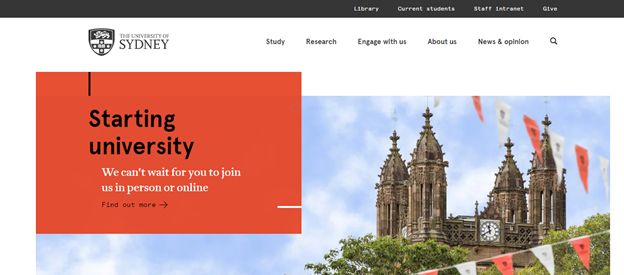
Essential homepage elements form the foundation of this task-first approach. Every effective intranet homepage includes three core components that work together to support user productivity:
- Launchpad: A customisable grid of application shortcuts that adapt to user role and permissions, providing one-click access to CRM systems, HR portals, project management tools, and other business-critical applications without forcing users to remember URLs or navigate multiple authentication screens.
- Search Bar: Prominent placement at the top of the page with intelligent filtering that surfaces results from across Microsoft 365, including SharePoint sites, Teams conversations, and OneDrive files, enabling users to find documents and information without knowing exactly where they are stored.
- Personalised News Feed: Context-aware content delivery that shows only relevant announcements based on user role, department, and location, ensuring that corporate communications reach the right audience without cluttering the homepage for everyone else.
Targeting Content by Role and Region
Audience targeting reduces cognitive load by ensuring users see only content relevant to their responsibilities and location. The average employee does not need to see announcements about the New York office’s parking policy or read updates about products their department does not support. When every user views the same generic homepage, the signal-to-noise ratio plummets, and people learn to ignore the intranet entirely. Effective targeting transforms the homepage from a broadcast channel into a personalised workspace.
Microsoft 365 provides the technical foundation for this personalisation through SharePoint Home Sites and Viva Connections. These tools leverage user profile data stored in Azure Active Directory—including department, location, job title, and security group membership—to dynamically filter which cards, widgets, and navigation links each user sees. When configured properly, targeting happens automatically without requiring users to customise their own views or manually select preferences. The system respects existing organisational hierarchies and security boundaries while delivering a tailored experience.
The distinction between ‘Global’ and ‘Local’ content determines what appears on each user’s homepage. Global content—such as company-wide policies, executive announcements, and organisation-level news—displays to all authenticated users regardless of role or location. Local content targets specific audiences: the HR team sees links to recruitment tools, the Manchester office receives region-specific health and safety updates, and sales representatives access their CRM dashboard. While standard SharePoint offers basic targeting capabilities, a comprehensive Omnia intranet solution allows for more granular control over who sees which cards and widgets, supporting complex organisational structures and multiple audience criteria.
The following table illustrates how audience targeting adapts the homepage experience for different user groups:
| User Group | Visible Cards | Navigation Links | News Feed Content |
|---|---|---|---|
| HR Team | Recruitment System, Employee Database, Payroll Portal | Policies Hub, Training Calendar, Benefits Admin | HR department updates, policy changes, compliance deadlines |
| Sales Representatives | CRM Dashboard, Commission Tracker, Product Catalogue | Sales Resources, Client Portal, Territory Maps | Product launches, sales targets, customer success stories |
| Remote Workers | VPN Access, IT Support, Virtual Meeting Rooms | Remote Working Policy, Equipment Requests, Wellbeing Hub | Remote work tips, tech updates, virtual events |
| Manchester Office | Local Directory, Site Map, Parking Portal | Manchester News, Facilities Booking, Regional Contacts | Office-specific announcements, local events, building updates |
Navigation That Mirrors User Intent
Traditional intranet navigation structures mirror organisational charts rather than user needs. Users do not think in terms of departments; they think in terms of tasks. When someone needs to book annual leave, they do not want to navigate through ‘Human Resources’ then ‘Employee Services’ then ‘Leave Management’. They want a direct link labelled ‘Book Leave’ that takes them straight to the form. Task-based navigation eliminates unnecessary steps and aligns with how people naturally conceptualise their work.
The mega-menu structure supports this approach by organising links around common user journeys rather than departmental silos. According to Microsoft’s guidance on audience targeting, navigation can be filtered so different users see different top-level menu items based on their role and permissions. A well-designed mega-menu includes categories such as ‘My Essentials’ (leave booking, expense claims, directory), ‘Tools and Systems’ (CRM, project management, document libraries), and ‘Support and Resources’ (IT helpdesk, policies, training). Each category contains task-oriented links rather than generic department pages.
Quick links and frequently used dashboards adapt to user behaviour over time. Modern intranet platforms track which links individual users click most often and surface those shortcuts prominently on their homepage. This creates a positive feedback loop: the more someone uses the intranet, the more efficient it becomes for their specific workflow. Mobile responsiveness through the Viva Connections app extends this experience beyond the desktop, ensuring that field workers, remote employees, and on-the-go managers can access essential tools from any device. Key navigation features include:
- Adaptive Quick Links: Automatically promote the tools and pages each user accesses most frequently, reducing the number of clicks needed to reach common destinations.
- Cross-Platform Consistency: Maintain the same navigation structure across desktop web, mobile app, and Teams integration so users do not need to relearn the system on different devices.
- Search-Driven Navigation: Enable users to type tasks in natural language (e.g., “submit expenses”) and surface the relevant forms or pages without requiring precise keyword matching.
- Breadcrumb Trails: Show users where they are in the site hierarchy and provide easy pathways back to key sections, reducing disorientation when exploring deeper pages.
Strict Adherence to UK Compliance Standards
Accessibility is not optional for UK public sector organisations and increasingly matters for private companies committed to inclusive design. The Public Sector Bodies Accessibility Regulations 2018 require that all websites and mobile apps meet WCAG 2.2 Level AA standards. This means ensuring sufficient colour contrast for users with visual impairments, providing text alternatives for images, supporting keyboard navigation for those who cannot use a mouse, and designing pages that work with screen readers. Approximately 20% of the UK population lives with a long-term illness or disability, and accessible design benefits everyone by improving usability, page speed, and search rankings.
Auditing the homepage during the build phase prevents costly retrofitting after launch. Tools such as WAVE facilitate human evaluation of web accessibility by injecting visual indicators directly into the page to highlight potential issues. These automated checks cannot determine full accessibility compliance—manual testing with actual users, including those who rely on assistive technologies, remains essential—but they provide a rapid first-pass assessment. WAVE identifies common problems such as missing alt text, insufficient contrast ratios, and improper heading hierarchies that confuse screen readers. Running these audits throughout development rather than as a final step ensures accessibility is embedded in the design process.
Cookie consent and analytics tracking must comply with UK PECR regulations as enforced by the Information Commissioner’s Office. The ICO’s guidance on cookies requires organisations to inform users about which cookies are set, explain their purposes, and obtain clear consent through an active positive action before placing non-essential cookies. Strictly necessary cookies—those required for authentication, security, or basic functionality—are exempt from the consent requirement. However, analytics cookies, marketing trackers, and personalisation cookies all require explicit user permission. The consent banner must not use pre-ticked boxes or assume consent from continued browsing.
Implementing compliance effectively requires a structured approach that integrates accessibility and privacy considerations from the start. Follow these steps to ensure your intranet homepage meets UK standards:
- Conduct an Initial WCAG 2.2 AA Audit: Use automated tools to identify obvious accessibility barriers, then perform manual testing with keyboard navigation and screen readers to catch issues that automated scans miss.
- Create a Remediation Plan: Document all identified issues, assign responsibility for fixing them, and establish deadlines that align with the legal requirement for public sector bodies to have compliant sites.
- Publish an Accessibility Statement: Explain what level of accessibility the site achieves, acknowledge any known issues, provide contact information for users who encounter barriers, and outline plans for ongoing improvements.
- Implement Cookie Consent Management: Deploy a consent banner that clearly lists cookie purposes, allows granular control over which categories users accept, and respects user choices across sessions without degrading core functionality.
- Schedule Regular Compliance Reviews: Accessibility and privacy regulations evolve; commit to quarterly audits and updates to maintain compliance as both the site and the legal landscape change.
Sustainable Design for Lower Carbon Footprint
Digital infrastructure carries environmental costs that most organisations overlook. Every page load consumes electricity at the data centre, on network infrastructure, and on the user’s device. An intranet homepage loaded thousands of times daily by hundreds or thousands of employees accumulates a significant carbon footprint. Sustainable design strategies reduce this impact through technical optimisation: compressing images, implementing lazy loading so assets download only when needed, and minimising JavaScript that forces devices to work harder. These choices directly lower energy consumption across the entire delivery chain.
The dual benefit of sustainability makes these optimisations worthwhile regardless of environmental commitments. Faster load times improve the experience for remote workers on slow connections and mobile users relying on cellular data. Lighter pages reduce bandwidth costs for the organisation and conserve data allowances for employees working from home or in the field. Performance and sustainability are not competing priorities; they reinforce each other. A homepage that loads in under two seconds because it uses optimised images and efficient code consumes less energy than a bloated page that takes five seconds and delivers the same information.
Choosing lightweight components over heavy custom widgets reduces both environmental impact and maintenance burden. Many organisations commission bespoke JavaScript widgets that replicate functionality already available in standard SharePoint web parts or Omnia components. These custom solutions often load multiple external libraries, make redundant API calls, and execute complex client-side processing that drains battery life on mobile devices. Reducing data transfer is not just about speed; it also addresses the environmental impact of cloud computing in 2025 by lowering energy usage across global infrastructure. Practical sustainability measures include:
- Image Optimisation: Compress all images using modern formats like WebP, resize images to match their display dimensions rather than serving full-resolution files, and use appropriate compression levels that balance quality with file size.
- Lazy Loading: Configure images, videos, and heavy components to load only when they scroll into view rather than downloading everything on initial page load, significantly reducing data transfer for users who never scroll to the bottom of the page.
- Minimise Third-Party Scripts: Audit every external JavaScript library and tracking pixel to ensure it provides genuine value; remove analytics trackers, social media widgets, and advertising scripts that consume resources without supporting core business functions.
- Server-Side Rendering: Generate dynamic content on the server where possible rather than forcing client devices to execute complex JavaScript, shifting energy consumption to efficient data centres rather than draining laptop batteries.
- Efficient Caching: Configure aggressive caching policies for static assets so browsers do not re-download unchanged files on every visit, reducing unnecessary data transfer and server load.
Build a Tool Your People Actually Need
Business outcomes determine whether your intranet succeeds or fails. Adoption metrics—daily active users, time spent on site, task completion rates—reveal whether employees find the homepage useful or ignore it. Efficiency gains emerge when people accomplish tasks faster because navigation aligns with their workflows. Compliance milestones matter when accessibility audits confirm the site works for all users and cookie management respects privacy regulations. These outcomes do not happen by accident; they result from intentional design choices that prioritise user needs over aesthetic preferences and corporate politics.
An intranet is never finished. User needs evolve as the organisation grows, new tools enter the technology stack, and regulatory requirements shift. Effective homepage governance requires ongoing measurement, regular content audits, and a feedback mechanism that captures user frustrations before they lead to abandonment. Review your homepage analytics monthly to identify which cards users interact with, which navigation paths they follow, and where they abandon their journey. Use this data to refine targeting rules, adjust visual hierarchy, and remove content that no one engages with. Identify one area for immediate improvement—whether that is simplifying the mega-menu, adding audience targeting to news feeds, or optimising image sizes for faster loading—and implement that change this quarter. Continuous incremental improvements compound into a homepage that genuinely serves your people and supports your organisation’s mission.

-
Five Tips to Help You Prepare for Your Dream IT Job Interview
 For many young graduates, getting their first developer job is always a challenge.
-
Travel Tech – Improving Our Holidays?
 Technology is changing our travelling experience by the day making our holiday getaways
About Author
